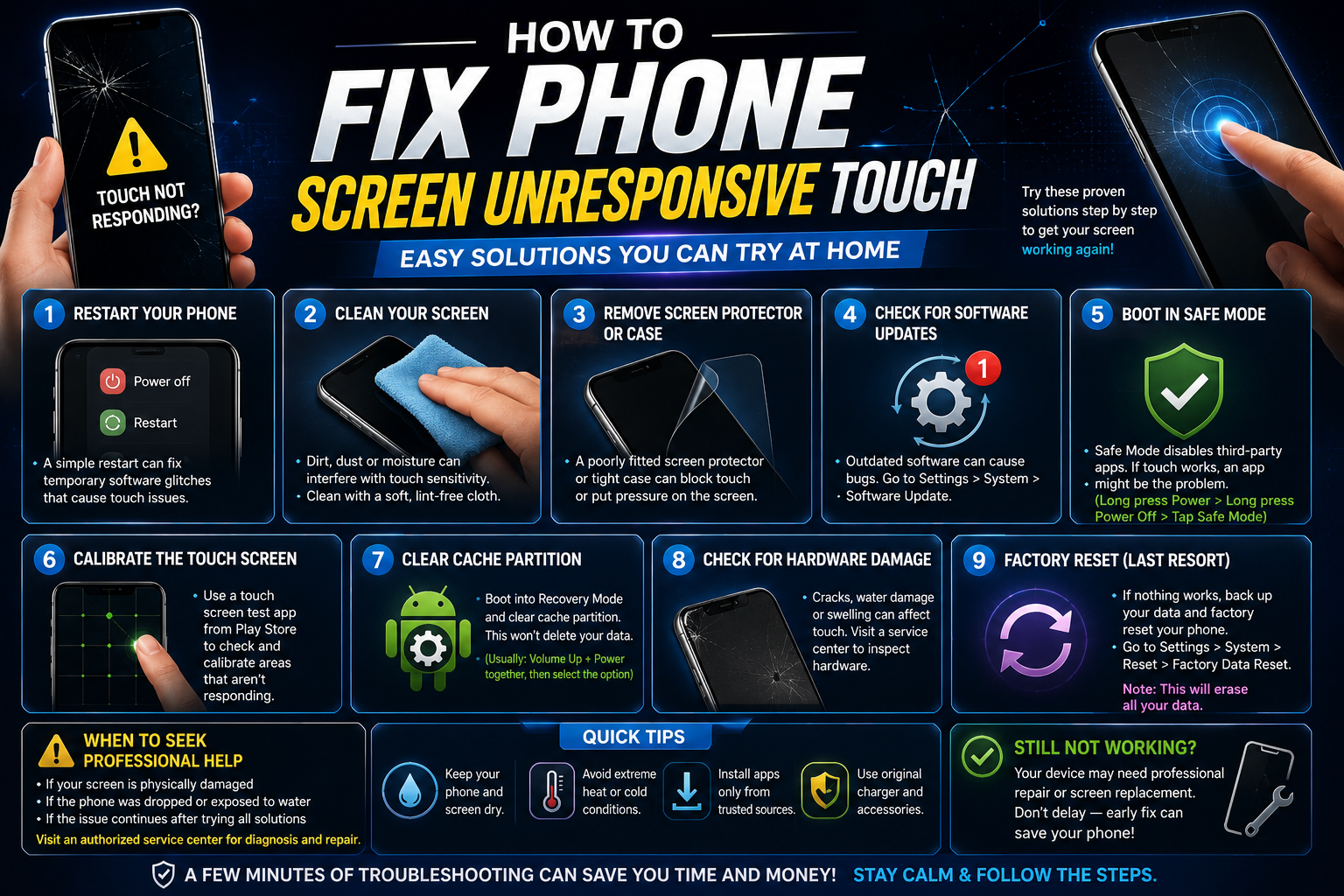
How to Fix Phone Screen Unresponsive Touch
If you’re searching for how to fix phone screen unresponsive touch, you’re probably dealing with one of the most frustrating smartphone problems. Whether your screen ignores taps completely, responds only in certain areas, or randomly freezes, an unresponsive touchscreen can make your device almost impossible to use.
The good news is that not every touchscreen issue requires a costly repair. In many cases, the problem is caused by software glitches, dirt, overheating, faulty accessories, or incorrect settings rather than a damaged display.
This guide explains why your phone’s touchscreen stops responding, walks you through proven troubleshooting methods, and helps you determine when professional repair is the best option. These solutions apply to most Android phones and iPhones, including Samsung Galaxy, Google Pixel, OnePlus, Motorola, Xiaomi, iPhone, and many others.
Why Does a Phone Touchscreen Become Unresponsive?
Before attempting repairs, it’s helpful to understand what causes touchscreen problems.
Common reasons include:
- Temporary software glitches
- Frozen operating system
- Insufficient storage
- Overheating
- Water or moisture damage
- Physical impact or cracked screen
- Faulty screen protector
- Charging issues
- Third-party apps causing conflicts
- Display hardware failure
Identifying the root cause makes troubleshooting much easier.
Signs Your Touchscreen Has a Problem
An unresponsive screen doesn’t always stop working completely. Watch for symptoms such as:
- Taps are ignored
- Screen freezes randomly
- Ghost touches occur without touching the display
- Only part of the screen works
- Keyboard misses letters
- Swiping becomes difficult
- Screen responds after several attempts
- Touch works only with excessive pressure
These symptoms often indicate either a software issue or a failing digitizer.
Quick Troubleshooting Checklist
Before trying advanced solutions, complete these simple checks.
- Remove your phone case.
- Remove the screen protector.
- Clean the display.
- Dry the screen completely.
- Restart the device.
- Disconnect the charger.
- Allow the phone to cool if it’s hot.
These quick fixes solve many touchscreen problems within minutes.
Clean the Screen Properly
Fingerprints, grease, dust, and moisture interfere with touch sensitivity.
To clean your phone safely:
- Turn off the phone.
- Use a microfiber cloth.
- Slightly dampen the cloth with distilled water if necessary.
- Avoid spraying liquid directly onto the display.
- Dry the screen completely before turning the phone back on.
Never use household cleaners containing ammonia or bleach.
Restart Your Phone
Temporary software errors frequently cause frozen touchscreens.
Android
- Hold the Power button.
- Tap Restart.
- If the screen won’t respond, hold Power for 10 to 20 seconds until the device reboots.
iPhone
For newer iPhones:
- Press Volume Up.
- Press Volume Down.
- Hold the Side button until the Apple logo appears.
A forced restart clears temporary system glitches without deleting your data.
Remove the Screen Protector
Not every screen protector is made with the same quality.
Cheap or damaged protectors can:
- Reduce touch sensitivity
- Create dead spots
- Cause delayed response
- Produce ghost touches
Remove the protector temporarily and test the display.
If touch improves immediately, replace it with a high-quality tempered glass protector designed for your phone model.
Disconnect the Charger
A faulty charger can interfere with touchscreen performance.
Symptoms include:
- Random touches
- Laggy screen response
- Touch working normally after unplugging
Try:
- Original charger
- Certified charging cable
- Different power outlet
Avoid low-quality third-party charging accessories.
Free Up Storage Space
When internal storage becomes nearly full, phones often become sluggish.
Check your storage.
Android
Settings > Storage
iPhone
Settings > General > iPhone Storage
Delete:
- Old videos
- Duplicate photos
- Unused apps
- Large downloads
- Cached files
Aim to keep at least 10 to 20 percent of storage available.
Close Background Apps
Too many running apps can overload your phone.
Close unnecessary applications.
Then check whether the touchscreen performs normally.
This is especially helpful for older devices with limited RAM.
Boot Into Safe Mode (Android)
Some third-party apps interfere with touchscreen performance.
Safe Mode loads only essential system software.
To enter Safe Mode:
- Hold the Power button.
- Press and hold Power Off.
- Select Safe Mode.
If the touchscreen works normally, a recently installed app is likely responsible.
Remove suspicious apps one by one.
Update the Operating System
Software updates often include touchscreen bug fixes.
Android
Settings > Software Update
iPhone
Settings > General > Software Update
Install any available updates before attempting more advanced repairs.
Update Individual Apps
A poorly optimized app may freeze your display.
Update apps through:
- Google Play Store
- Apple App Store
Pay special attention to:
- Keyboard apps
- Launchers
- Accessibility apps
- Screen recording apps
Calibrate Touch Sensitivity
Some Android phones include touchscreen sensitivity settings.
Look for:
Settings > Display
Possible options include:
- Touch Sensitivity
- Increased Sensitivity
- Glove Mode
Enable the setting if you’re using a screen protector.
Check for Moisture Damage
Modern phones have some water resistance, but moisture can still affect touch functionality.
Warning signs include:
- Screen flickering
- Random taps
- Partial touchscreen failure
- Fog inside camera lenses
If your phone got wet:
- Turn it off immediately.
- Remove the SIM tray.
- Let it dry naturally.
- Avoid charging until completely dry.
Do not use a hair dryer because excessive heat may damage internal components.
Let an Overheated Phone Cool Down
High temperatures reduce touchscreen performance.
Your phone may overheat because of:
- Gaming
- Direct sunlight
- Fast charging
- Heavy multitasking
Allow the phone to cool for 15 to 30 minutes.
Avoid placing it inside a refrigerator or freezer because sudden temperature changes may create condensation.
Test the Touchscreen
Many Android manufacturers include hardware diagnostic tools.
You can also test by:
- Opening the Notes app
- Drawing lines across the display
- Checking whether every area responds
If one section consistently fails, the digitizer may be damaged.
Factory Reset as a Last Software Fix
If every software solution fails, a factory reset may help.
Important:
Back up all important data before resetting.
Android
Settings > System > Reset
iPhone
Settings > General > Transfer or Reset iPhone
A reset removes corrupted settings and software conflicts.
If the problem remains afterward, the issue is likely hardware-related.
Common Hardware Problems
Sometimes software isn’t the cause.
Hardware issues include:
Broken Digitizer
The digitizer detects finger touches.
Symptoms:
- Dead touch areas
- No response
- Partial touchscreen failure
Loose Display Connector
A phone dropped repeatedly may develop a loose display cable.
Signs include:
- Touch works intermittently
- Screen flickers
- Display disconnects temporarily
Damaged Display
Cracked displays often develop internal touch problems.
Visible cracks are not always necessary.
Internal damage can occur without external signs.
Battery Swelling
A swollen battery pushes against the screen from inside.
Symptoms include:
- Raised display
- Screen separating from the frame
- Random touch failure
Stop using the phone immediately if battery swelling is suspected.
When Should You Replace the Screen?
A screen replacement is usually necessary when:
- Large areas no longer respond
- Cracks are visible
- Ghost touching continues after resetting
- Water damage has reached the display
- Digitizer testing fails
- Display flickers continuously
Replacing only the glass is not always possible because modern displays often combine the glass, OLED or LCD panel, and digitizer into one assembly.
Prevent Future Touchscreen Problems
Protecting your phone reduces the chance of future issues.
Good habits include:
- Use a quality tempered glass protector.
- Choose a shock-resistant case.
- Keep the screen clean.
- Avoid exposing the phone to extreme temperatures.
- Install software updates regularly.
- Use original charging accessories.
- Avoid overloading storage.
- Keep apps updated.
- Do not leave the phone in direct sunlight.
Can an Unresponsive Touchscreen Fix Itself?
Sometimes.
If the issue is caused by:
- Temporary software bugs
- System overload
- Moisture on the screen
- Overheating
- Faulty accessories
the touchscreen may begin working normally after restarting or cooling down.
However, hardware damage rarely fixes itself and usually becomes worse over time.
Professional Repair vs DIY Repair
| DIY Troubleshooting | Professional Repair |
|---|---|
| Restart phone | Replace digitizer |
| Remove screen protector | Replace display assembly |
| Clean screen | Repair loose connectors |
| Update software | Repair water damage |
| Factory reset | Replace swollen battery |
Attempt DIY repairs only if you’re comfortable working with smartphone components. Opening modern phones without proper tools can damage waterproof seals and delicate cables.
Troubleshooting Flowchart
If your touchscreen stops responding:
- Clean the display.
- Restart the phone.
- Remove the screen protector.
- Disconnect the charger.
- Update the operating system.
- Free storage space.
- Boot into Safe Mode.
- Test the touchscreen.
- Perform a factory reset.
- Seek professional repair if the issue persists.
Following this order helps eliminate the simplest causes before considering hardware replacement.
Frequently Asked Questions
Why is my phone screen on but not responding to touch?
This usually happens because of software glitches, a faulty screen protector, moisture, overheating, or physical damage to the touchscreen digitizer.
Can a cracked screen cause touch problems?
Yes. Even small cracks can damage the digitizer beneath the glass, leading to dead spots, delayed responses, or complete touchscreen failure.
Does restarting fix touchscreen issues?
In many cases, yes. Restarting clears temporary software errors and refreshes system processes that may interfere with touchscreen performance.
Why does my touchscreen stop working while charging?
This is often caused by a defective charger, damaged charging cable, poor grounding, or electrical interference. Using the original charger usually resolves the issue.
Should I replace my screen if only part of it works?
If software troubleshooting doesn’t restore full functionality, partial touch failure usually indicates digitizer damage, and replacing the display assembly is the most reliable solution.
Conclusion
A touchscreen that suddenly stops responding can be alarming, but it doesn’t always mean your phone is beyond repair. Most issues stem from software bugs, dirty screens, faulty accessories, overheating, or storage problems that can be resolved in minutes with the right troubleshooting steps.
Start with the simplest fixes such as cleaning the display, restarting the phone, removing the screen protector, and updating your software. If the problem continues after a factory reset or only certain areas of the screen respond, the touchscreen hardware has likely failed and professional repair or screen replacement is the most practical solution.
By following the methods outlined above and practicing good device care, you can often restore normal touchscreen performance and extend the life of your smartphone while avoiding unnecessary repair costs.
Related Posts
Milwaukee Tools Ace Clearance

Bob Vila 2025: Net Worth, Career, TV Legacy, Latest Projects, and Home Improvement Influence